 Logobundle
Turn a Midjourney logo into an SVG
Updated · 10 min read
Midjourney cannot export an SVG: it only makes raster images, so you get a vector logo by tracing its PNG into paths. Before you trace, the paper texture, grain, glow and scenery that Midjourney images often come with have to go, because a tracer turns every one of them into shapes. This guide shows what those extras do to a trace, how to prompt for a logo that traces cleanly, what to do about lettering, and how to convert the file by hand or with Logobundle.
A real result
On this page
Why a Midjourney PNG is not a logo file yet
A logo has to work at 16 px in a browser tab and on a 3 m banner. A raster image only works near the size it was made at: scaled up it blurs, scaled down fine texture turns to noise. Midjourney downloads are PNG, JPG or WebP files, all raster. There is no SVG export, so a vector version has to be traced: software finds the edge of each colour and redraws it as paths.
Midjourney images often come with things a logo should not have: grain, glow, lighting, a beige paper background, or a mockup scene if the prompt asked for one. A vector logo is a few flat colours with crisp edges, so those have to go first. The example below shows what happens when they do not.
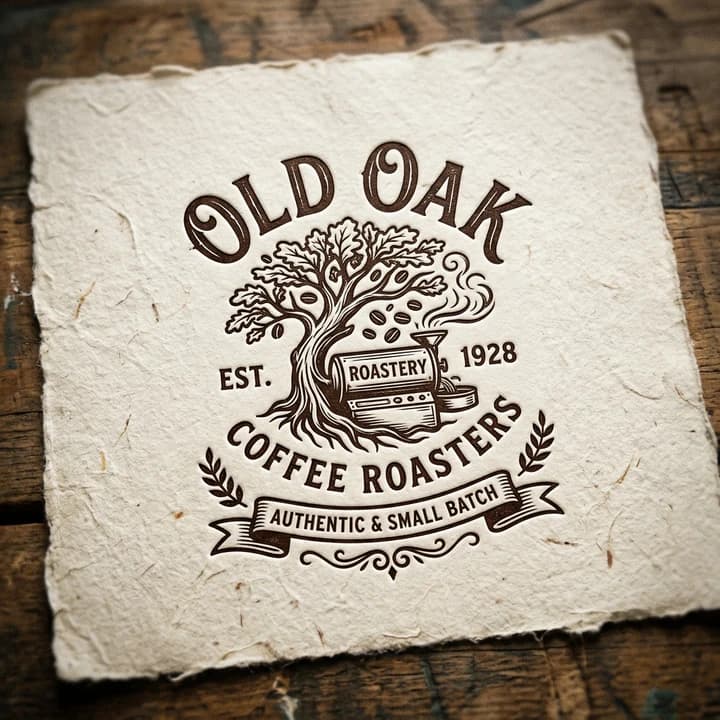
As generated
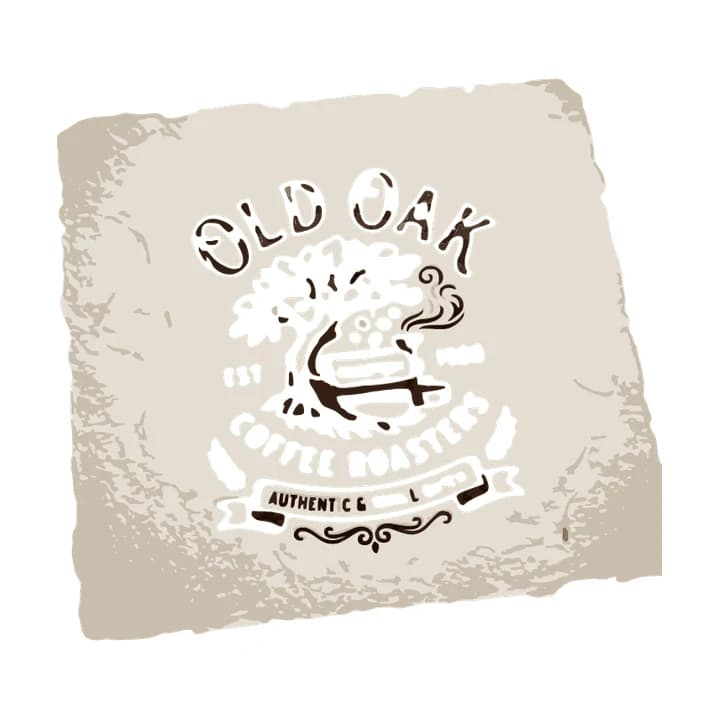
Traced as is
The tracer removed the wooden table but took the sheet of paper for the logo. The result is a beige shape with ragged, blotchy edges. The badge itself became a white cut-out inside it: the tree, "Coffee Roasters", "Est." and "1928" are holes, the brown ink of "Old Oak" survives only in pieces, and "Authentic & Small Batch" is down to a few letters. The art was fine. The paper around it was the problem.
The fix is to start from a version without the paper: ask Midjourney for the same badge on a plain white background, or crop and clean the image before you trace. The next section shows the other extras that cause the same kind of trouble.
What Midjourney adds that a logo cannot keep
Midjourney's default style adds contrast, detail, light and materials, and it often places the logo in a scene. A logo needs the opposite. We ran three more uploads that look like typical Midjourney output through Logobundle's plain trace (background removal on, AI boost off), as they were.
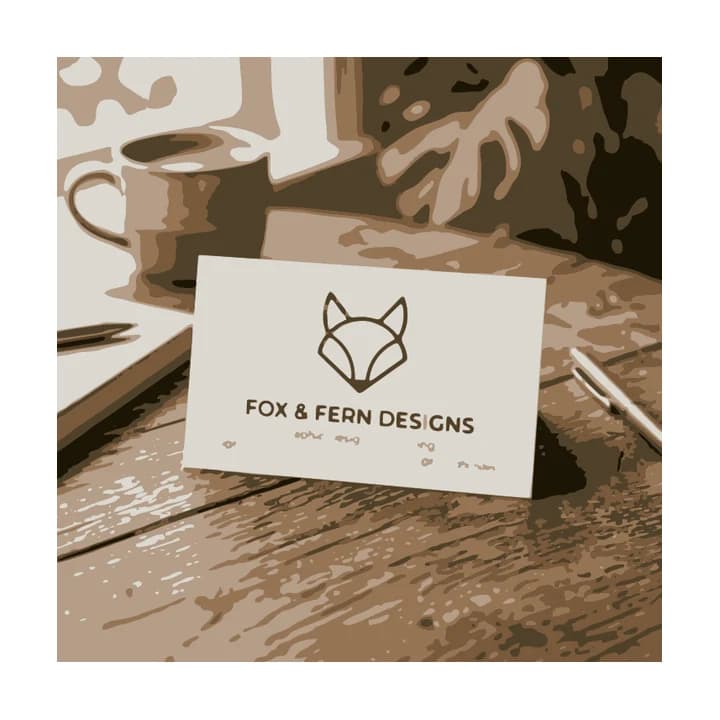
Mockup scene
Gloss and reflection
Glow on a dark backdrop
- Mockup (✗): the tracer cannot tell the logo from the room, so it traces everything. The SVG is a sepia picture of the desk, the mug, the plant and the pens. The fox and "Fox & Fern Designs" are still readable on the card, but the contact line under them has broken into specks. Ask for the logo alone, or trace the flat original the mockup was made from.
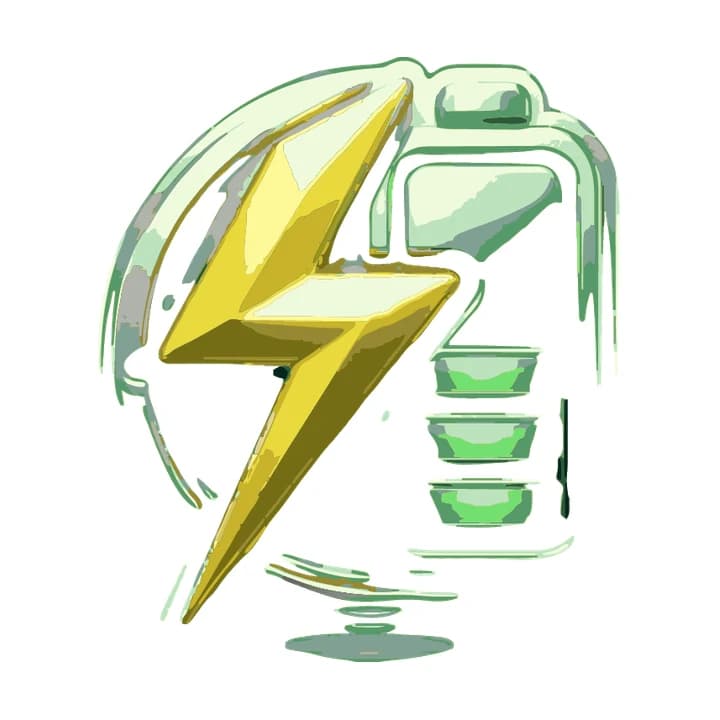
- Gloss (✗): the navy backdrop is gone, but every highlight and bevel became a shape of its own. The bolt is a stack of yellow facets in several shades, the silver ring and the battery are pale green streaks, and the reflection on the floor is still there as grey stripes. Ask for flat fills with no shading or reflection.
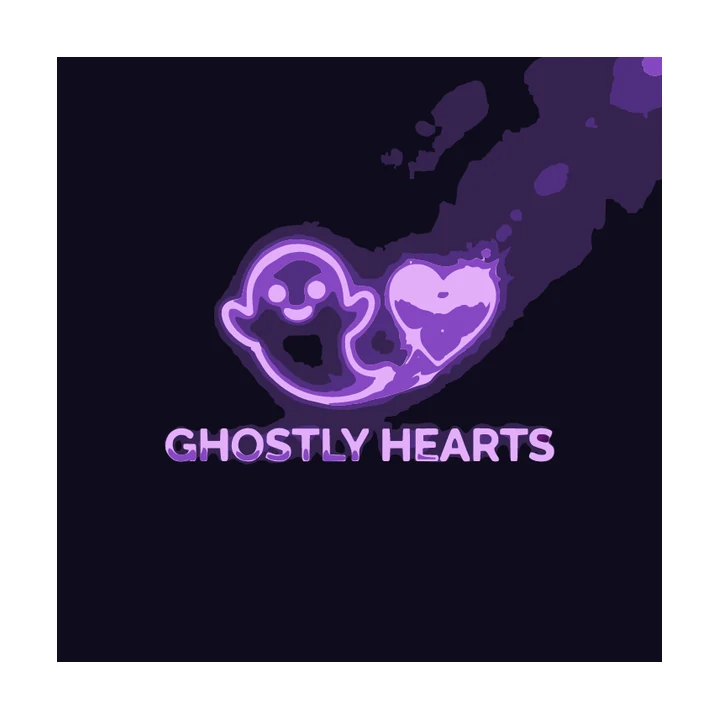
- Glow (✗): the glow fades into a dark backdrop, so there is no point where the logo stops. The trace keeps the whole dark square, the purple haze in the corner as smears and the heart as a blotchy patch. The ghost and the lettering survive, but only on that square. Ask for the same logo without glow, on a plain light background.
Have a Midjourney logo on a plain background? Upload it and check the result for free.
How Logobundle vectorizes it
Background removal is automatic. It tries to remove paper textures, gradients, vignettes and card shadows, but it can take the wrong layer for the logo, as the coffee badge above shows. Colours are then reduced to a small palette, folding the many near-identical shades Midjourney produces into one flat fill each; two very dark colours can end up merged, as the mountain example below shows.
Every colour is then traced into smooth vector paths. Clean colour ramps are kept as SVG gradients where they fit. With a paid pack, the included AI boost first has Gemini redraw the logo flat and clean, which is built for textured or glowing output like the examples above. You can switch back to the plain trace at any time.
The background step can guess wrong when the backdrop is part of the look, such as a sheet of paper that frames the art. After the upload you can make background removal gentler or stronger, change the level of detail from Simpler shapes to Keep small parts, and move corners between Rounder and Sharper. Change one control at a time and compare. The free download lets you check every image file first: watermarked, up to 256 px and without the vector files. Paying once unlocks the SVG, PDF and EPS.
Prompts that trace well
The cheapest clean-up happens in the prompt. We made two logos for the same imaginary mountain brand, one with the kind of prompt people often start with and one written for tracing.
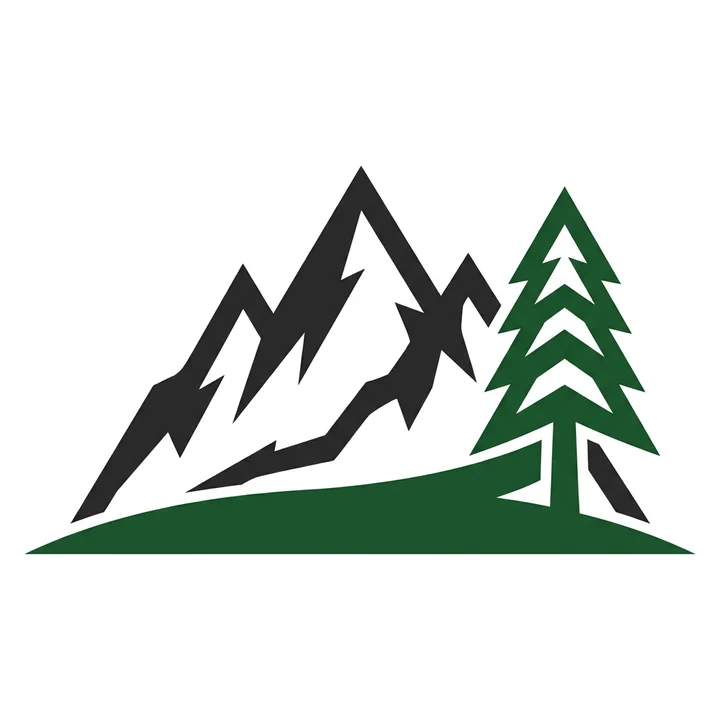
logo for a mountain outdoor brand, epic, cinematic lighting, 3D, glowing, detailed, 8kflat vector logo for a mountain outdoor brand, two solid colours, bold simple shapes, thick lines, no gradients, no text, isolated on a plain white background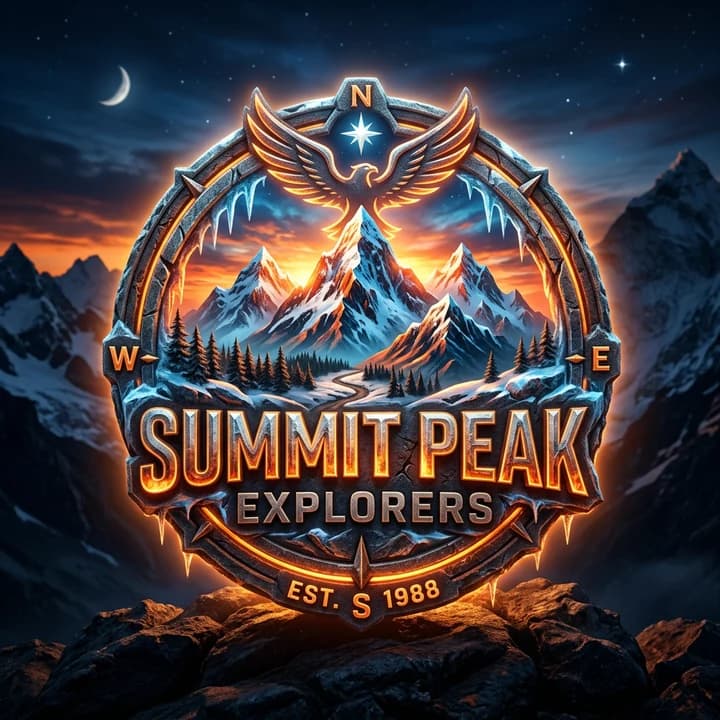
"Epic, cinematic" prompt
"Flat, two solid colours" prompt
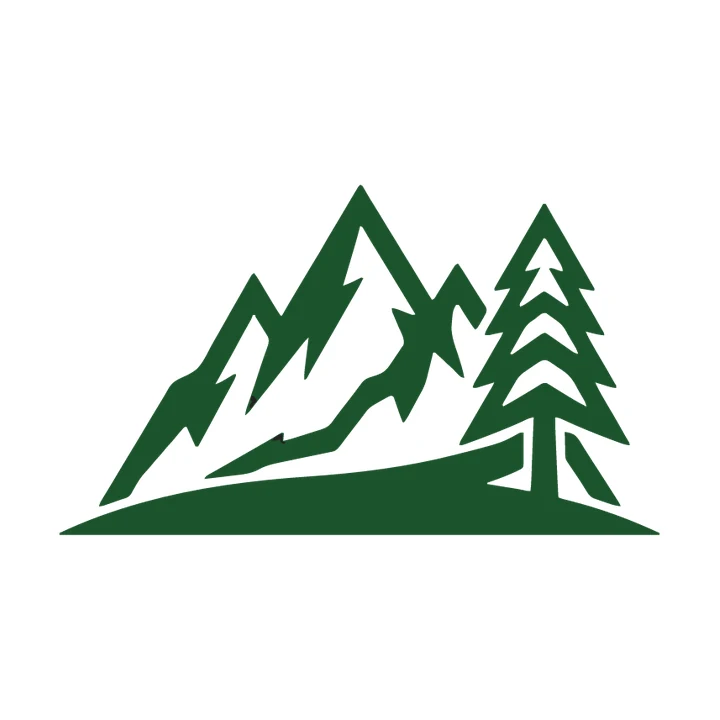
Flat prompt, traced
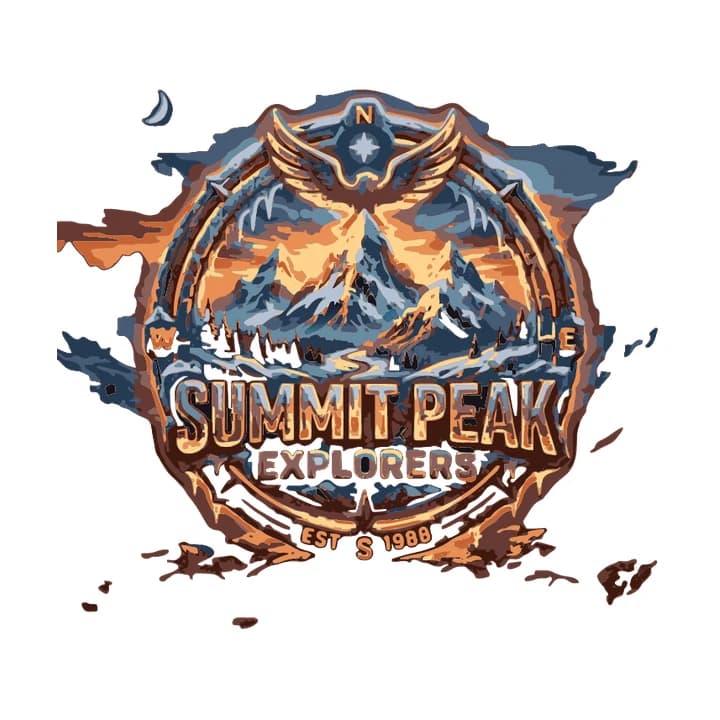
Epic prompt, traced
The epic badge has a sunset, a night sky, ice, stone and an orange glow. Its trace is a patchwork of blue, orange and brown patches. Torn pieces of the sky and the rocks hang around the ring, and the lettering is rough at the edges. You could not print it on a cap. The flat logo traces into a few clean shapes with sharp peaks and a crisp tree. One thing went wrong: the near-black mountains came out in the same dark green as the tree, probably because both colours are very dark. If your two colours matter, pick ones that differ in lightness, such as dark green and orange.
- Words that help: flat, vector, minimal, solid colours, two or three colours, bold shapes, thick lines, plain white background, isolated, no gradients.
- Words that hurt: 3D, cinematic, glowing, photorealistic, detailed, 8k, texture, mockup, embossed, metallic, lighting.
- Use --no for things you keep getting, for example --no shadow, gradient, texture. Midjourney reads each word after --no on its own, so list single words.
- Try --style raw (or --raw) for less of Midjourney's own embellishment. It follows the prompt more literally, which suits a plain logo.
Misspelled or wobbly text
AI image models draw letters as shapes, not as type. The result can be a misspelled name, a doubled letter or a word that drifts out of line. Whatever model made your logo, read every letter before you use it.
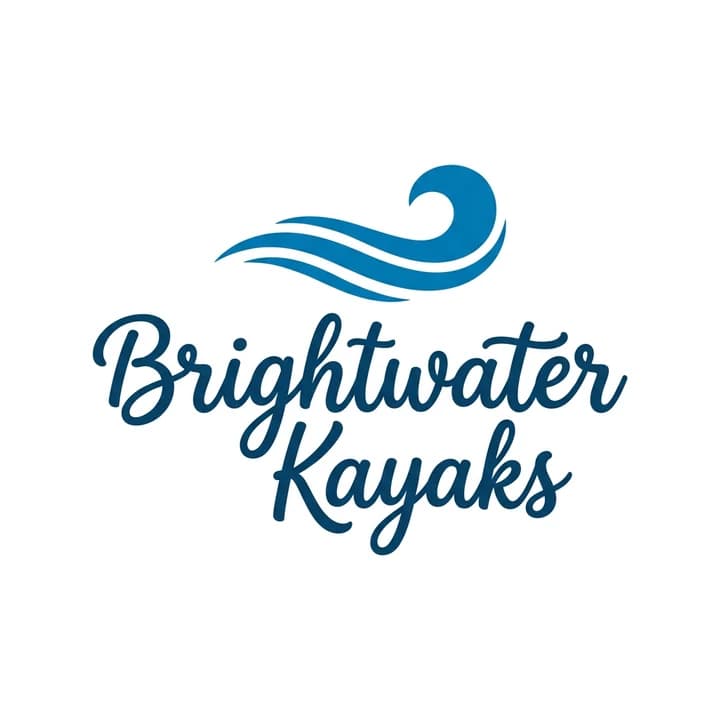
Script wordmark
Nano Banana got it right here: "Brightwater Kayaks" is spelled correctly, and the script is even. Midjourney is less reliable here, especially with longer names or small lettering, and a single wrong letter in a logo is worse than none. Even when the spelling is right, generated lettering has two practical problems. You cannot change it later, because it is drawn, not typed. And a thin script loses detail fast when the logo gets small.
The safer route is to split the logo in two. Generate the symbol alone, with "no text" in the prompt, and trace it. Then set the name in a real font next to it, in a design tool. The font stays editable, renders sharp at every size and is spelled the way you typed it.
Convert it by hand or with Logobundle
You do not need Logobundle to vectorize a Midjourney logo. Inkscape (free) and Illustrator both have a tracer, and both work well on a clean, flat image. The step-by-step settings for each are in converting a PNG logo by hand. Neither removes a backdrop for you, so crop and clean the image first, and set the colour count to the number of colours you can actually name.
Logobundle tries the backdrop removal, the colour reduction and the trace in one upload, and builds the rest of the pack from the vector: favicons, app icons and social images. It works best on a logo on a plain background; a paper sheet or a mockup scene, as shown above, still needs cropping first. That matters for a Midjourney logo, because a detailed symbol often needs a simpler version at 16 px. The favicon guide shows how to handle that.
If your logo came from ChatGPT rather than Midjourney, the problems are different: a fake transparency checkerboard instead of paper and grain. The ChatGPT guide covers those. For a logo from Gemini, the Gemini guide shows how to flatten it with a Nano Banana edit before tracing.
Try every file before you pay
- Previewevery image file, watermarked
- Free
- Logovectors, print, PNG
- €8.99
- Complete+ favicons, app icons, social
- €18.99
No account, ready in about a minute. Your image is only used to make your files, sits behind a private link and is deleted after 30 days.
Upload your logo image
A PNG, JPG or WebP: from an image generator, an old website or a scan. A plain or transparent background works best.
Preview the pack, free
Every image file, with a watermark. Try the favicon in your site and the icon on your phone.
Get it clean
Pay once, from €8.99: no watermark, the SVG vectors, and the AI boost, which redraws your logo flat and clean first. Prefer the plain trace? Untick it at checkout.
Pricing
Complete
€18.99 paid once
- AI boost: redrawn flat and clean before tracing
- SVG vectors that scale to any size
- Print-ready PDF and EPS
- Transparent PNGs, WebP and AVIF, black and white versions
- Favicons, touch icons, web manifest
- iOS, Android and desktop app icons
- Share images for links and profiles
- Die-cut sticker, 50, 75 and 100 mm
Logo
€8.99 paid once
- AI boost: redrawn flat and clean before tracing
- SVG vectors that scale to any size
- Print-ready PDF and EPS
- Transparent PNGs, WebP and AVIF, black and white versions
- Die-cut sticker, 50, 75 and 100 mm
No favicons, app icons or share images.
Free
€0 watermarked
Every image file with a watermark, to check the result. No vectors, preview only.
One-time payment. The AI boost is included; prefer the plain trace? Untick it at checkout.
Only need stickers? Sticker pack for €4.99 with print-shop, Cricut and Silhouette files and ready-made sheets.
Questions
- Can I use a Midjourney logo commercially?
- That depends on your Midjourney plan and its current terms, not on Logobundle. Check Midjourney's terms of service. Also check that the logo does not resemble an existing trademark before you use it.
- Does the SVG keep the Midjourney texture?
- No. A vector logo is made of flat colour shapes, so grain and lighting are left out on purpose. Smooth colour ramps are kept as real SVG gradients.
- Can Midjourney make SVG files?
- No. Midjourney only produces raster images, downloaded as PNG, JPG or WebP. Prompting for "vector" or "SVG" changes the look of the image, not the file format. To get an SVG you have to trace the image.
- Should I upscale before tracing?
- It is not needed for Logobundle. Every upload is scaled down to at most 1,400 px before the background is removed, and the logo is traced at between 768 and 1,536 px, so a larger upscale adds nothing. An upscaler can also invent texture and edge detail that the tracer then follows. Upload the cleanest original instead.
- What --style or parameters help?
- Two are worth trying. --no followed by single words (such as --no shadow, gradient, texture) tells Midjourney what to leave out. --style raw (or --raw) applies less of Midjourney's default beautification, so a plain logo prompt is followed more literally. The words in the prompt matter more than either: ask for a flat logo with a few solid colours on a plain white background.
More answers in the main FAQ.